/Phin%20Logo%20Stacked.png?width=60&height=60&name=Phin%20Logo%20Stacked.png)
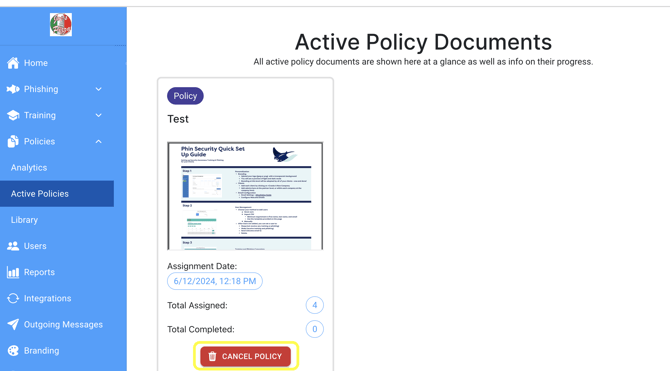
Step 1: Open the cancel policy modal
Under 'Active Policies' select the red button called 'Cancel Policy' to make the policy inactive.
Step 2: Cancel the policy via the cancel modal
Using the pop-up from the previous step, you can press "Cancel Policy"
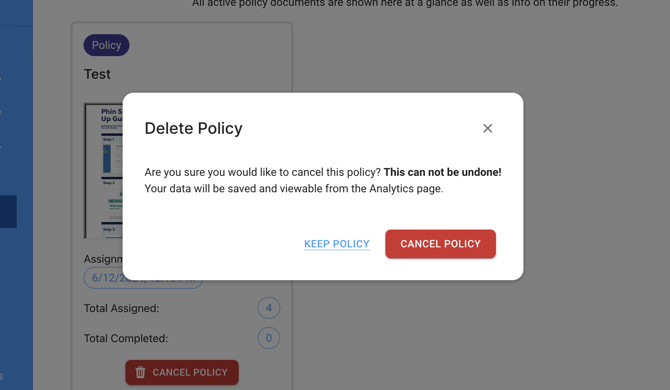
This will remove the policy from the LMS (Learning Management System) of any user who has been assigned the policy. This will NOT stop any assignment emails for this policy, as they are scheduled to be sent as soon as the policy is distributed.
How to Delete a Policy
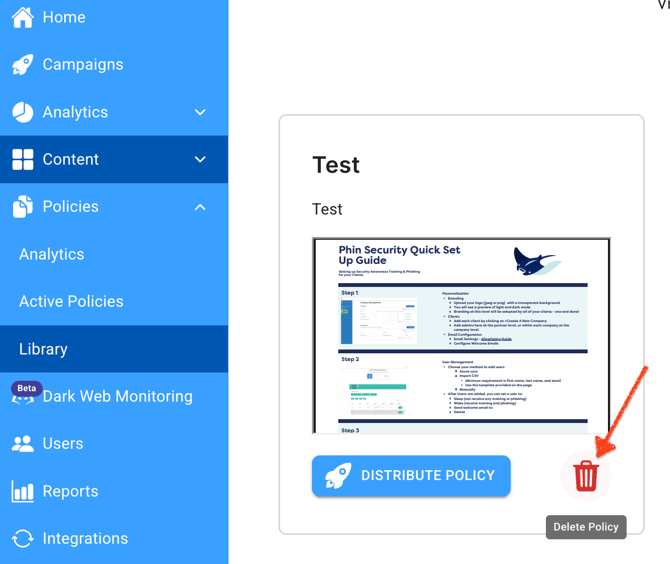
Under Library, click the policy you would like to delete. Click on the trash can icon. A pop-up will ask you to confirm you would like the policy deleted. If you wish to continue, click Delete.