
The Phin Email Triage Solution is designed to help Phin partners triage, resolve, and take action on reported emails across multiple tenants in mass.
The triage feature is currently available only upon request. If you already have access and are looking for onboarding instructions - skip to setup.
- Fully supported in ConnectWise.
- Halo support is in an Alpha stage
If you're interested, please open a support ticket or reach out to design@phinsecurity.com.
Feature List
The Email Triaging feature is a better way of reviewing your submitted emails. The integration includes:
- Extracting information from the reported email, such as headers, URLs, and the email preview.
- Analyzing the emails using AI to extract the Severity and Tags, which help you understand what kind of potential attack this is.
- Multi-tenant functionality to search for emails, delete emails, and block attackers without leaving our solution. All these actions can be done across all your tenants at once, e.g., blocking a dangerous attacker across all your companies with a single button.
To find your Partner ID, please view the following article.
ConnectWise Service Desk Pod Walkthrough Demo
Setup Instructions
Whether you intend to use the Triage table within the Phin application or want to create the triage tool as a Pod within CW Service Desk, both require the Report Phishing Button integration at the company level to be enabled.

- Companies - Company Maintenance: Inquire Level (All), Manage Attachments: Add Level(All), Inquire Level (All), Contacts: Inquire Level (All)
- Service Desk - Service Tickets: Add Level (All), Inquire Level (All)

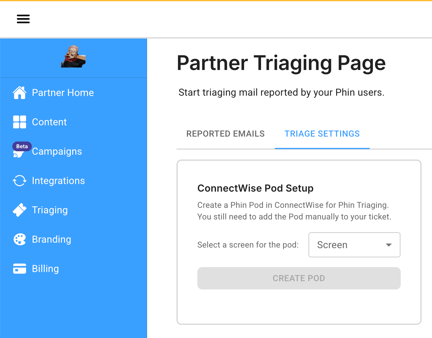
- Table Setup: Add, Edit, Delete, Inquire (All) is what's needed.
If you don't give us the above permissions, then you will have to make the Pod manually.
Knowledge Base
Phin works to update our Knowledge Base with new features with every release. You can read about the platform and its updates here: https://www.phinsec.io/knowledge.
Thanks for using our product!
We use all provided feedback to help drive Phin's development direction. Please keep reaching out and helping us shape the product's future! All ideas are welcome; please keep them coming!
The Dev Team @ Phin
Need help or have an idea for us? Click here!