/Phin%20Logo%20Stacked.png?width=60&height=60&name=Phin%20Logo%20Stacked.png)
Overview
Phinbox IQ can be inserted into your ConnectWise Service Desk as a pod, giving you the full functionality of the feature directly within ConnectWise. Below is a step-by-step guide for setting up Phinbox IQ and deploying it as a pod in ConnectWise.
Example of the pod's functionality in ConnectWise Service Desk.
Page Index
Each link below will navigate you to the associated instructions.
1. Configure Prerequisites in ConnectWise Manage ↓
2. Connect Phin to ConnectWise Manage & Enable Service Desk Integration ↓
3. Create and Deploy the Phinbox IQ Pod ↓
4. Map Phin Companies to ConnectWise Companies ↓
5. Deploy the Report Phishing Button For Each Mapped Company ↓
6. Enable Phinbox IQ For Each Mapped Company ↓
Partner Level Configurations
Steps 1-3 are partner configurations that only need to be performed once. Skip to company level configurations ↓
1. Configure Prerequisites in ConnectWise Manage
Before you begin any configuration in the Phin platform, be sure to complete these steps in ConnectWise Manage:
Create Security Role in ConnectWise Manage
If the API member you create will NOT use the built-in Admin role, you must create a dedicated role with the permissions listed below for service desk.
-
In ConnectWise Manage, go to System > Security Roles.
-
Click + to add a new role.
-
Name it Phin Integration and save.
-
Assign these permissions:
Service Desk Integration Permissions
-
Companies > Company Maintenance — Inquire Level (All)
-
Companies > Manage Attachments — Add & Inquire Level (All)
-
Companies > Contacts — Inquire Level (All)
-
Service Desk > Service Tickets — Add & Inquire Level (All)
IMPORTANT: If you are planning to deploy the Phinbox IQ pod to your CW Service Desk, make sure the next permission is also configured in the same security role.
- System > Table Setup - Add, Edit, Delete, Inquire (All)
-
Alternatively you can grant specific permissions using the ‘customize’ link. Make sure ‘General/Manage Hosted API’ is on the left side (Allow column) in the Update Security modal.
-
Save the security role once the permissions listed above have been set.
Create an API Member in ConnectWise Manage
-
Go to System > Members > API Members.
-
Click + to create a new API Member.
-
Enter a Member ID and Member Name such as Phin API User.
-
Assign the Phin Integration role you created earlier.
-
Alternatively you can assign the Admin role.
-
-
Navigate farther down the page to Service Defaults > Service Board > Default Board and assign a default service board to this API Member.
-
If no suitable service board exists, create one via System > Setup Tables, search Service Board, and add it.
-
-
Add a description (e.g., Phin Integration Key) and save.
-
Copy and store the generated Public Key and Private Key; you’ll need them in Phin.
You should now have all the pieces to connect Phin to CW Manage
-
Company ID – the Company value visible on the ConnectWise login screen or via System > My Company in the URL.
-
ConnectWise API URL – the base URL you use to log into ConnectWise.
-
Public Key and Private Key – generated in the API member steps.
2. Connect Phin to ConnectWise Manage & Enable Service Desk Integration
Connect Phin to CW Manage
-
Log in to the Phin partner portal.
-
Navigate to the Integrations page.
-
Locate either of the ConnectWise Manage integration tiles and open one.
-
Enter the following credentials:
-
Company ID
-
ConnectWise API URL
-
Public Key
-
Private Key
-
-
Select Connect.
-
This establishes the connection between platforms and unlocks the Service Desk integration.
Enable Service Desk
Click the 'Enable' button to toggle the Service Desk integration on.
- If you're an existing partner with company accounts already created, you'll be able to map companies in Phin to companies in ConnectWise ↓ right away on the Service Desk integration page. Refer to step 4 in this guide for details on how to do this if you'd like to do this before deploying the pod.
- If you're a brand new partner and haven't created any companies yet, you'll need to create at least one company account to proceed and then come back to the Service Desk integration page to map companies between Phin and ConnectWise Manage.
3. Create and Deploy the Phinbox IQ Pod
- Inside of the ConnectWise integrations section, navigate to the tab
labeled Phinbox IQ Pod. - If Phin recognizes a lack of the Table Setup permission you would have added to your security role in the pre-requisite steps, a warning will be displayed. Refer to the pre-requisite steps ↑ to ensure the Phin integration security role you created has all the correct permissions configured.
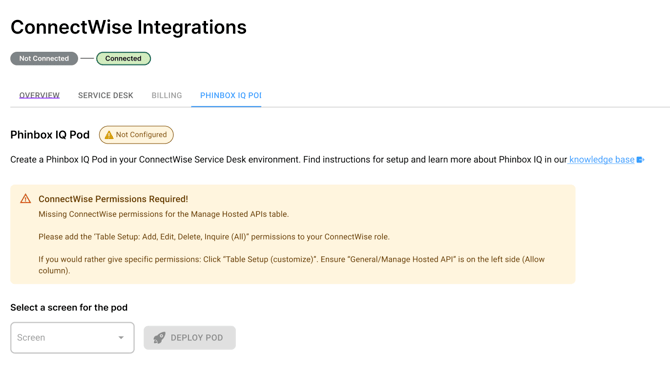
- Select the screen for your pod. This will likely be Service Ticket.
- Click 'Deploy Pod' - at which point you should see a success message that your pod was created and deployed to ConnectWise.
- Steps 5 - 10 must be performed per technician who wants to utilize the Phinbox IQ pod within their service tickets.
- Now navigate to your ConnectWise Manage environment.
- Go to a ticket (Service Desk -> Service Board)
- Press the Gear top right
- Press Pod Configuration
-png-3.png?width=670&height=340&name=image%20(1)-png-3.png)
- Find the Phin Pod on the left, select it, and click the arrow pointing right.
-png-2.png?width=670&height=458&name=image%20(2)-png-2.png)
- It'll then show in your tickets. You can drag and drop it around the ticket and this will persist in all tickets created from companies mapped in the Service Desk integration.
- Once it's been configured in a ticket, all tickets for the ConnectWise user who set it up will include the PhinboxIQ pod. If other CW users want the PhinboxIQ pod in their accounts, it's as simple as following steps 5 - 10 above.
Company Level Configurations
These steps are to be repeated per company account in Phin as they are dependent on credentials and mapping associated with each company tenant.
4. Map Phin Companies to ConnectWise Companies
This step is to map company tenants in Phin to company tenants in your ConnectWise Manage environment. This is required in order for our systems to know which companies in ConnectWise to associate reported tickets with. If you are a brand new partner with no companies in Phin, you'll have to go create companies in order to see a list of companies in the 'Company' column on the Service Desk integration page. If you're an existing partner, you likely have one or more companies already set up, in which case you should see companies listed.
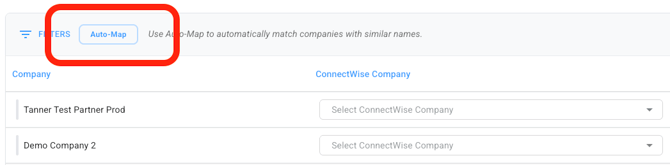
There are two ways to map companies from Phin to ConnectWise Manage: Auto-Map or manual mapping. Both methods are completed from within the Service Desk integration page.
- Auto-Map: When you click "Auto-Map," the button will turn grey, disabling itself from being clicked again, and the integration will attempt to find exact matches between your Phin company names and company names in your ConnectWise Manage account. The "Auto-Map" button is to the right of the "Filters" button. Depending on how many companies you have, this process can take up to a minute. You will know the process is over when you see the "ConnectWise Company" column populate with company names, and the Auto-Map button will no longer be disabled.
- Manual Mapping: If your company naming convention in ConnectWise Manage is different from the one you use in Phin, manual mapping is the tool for you. Just select a company from the dropdown field in the ConnectWise Company column or start typing the company name, and Phin will attempt to find it for you.
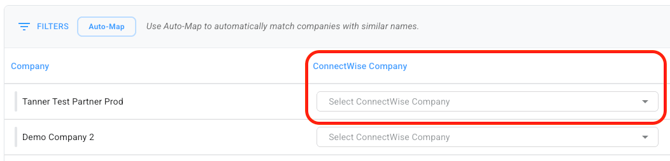
🚧 If you manually map company names for some rows and then choose to auto-map, your manually mapped company names will not be overridden. You must remove company names from the ConnectWise Company column in order for auto-map to update the column fields.
When a selection is made, the mapping is saved automatically. The "Mapping Saved" date is in the bottom left corner of the table. The 3rd and 4th columns in this mapping table are the 'Report a Phish' column and 'Phinbox IQ' column. These columns allow you to configure both of the necessary company level integrations directly from the service desk integration. Move on to step 5 and 6, the final required steps, for instructions on how to deploy these integrations and ensure tickets reported by these companies are analyzed by Phinbox IQ.
5. Deploy the Report Phishing Button For Each Mapped Company
The following will be focused on configuring the Report Phishing integration from the Service Desk mapping table. For more info on the Report Phishing Button check out this article.
Before proceeding, please check to see if your Outlook instance meets the necessary requirements set forth by Microsoft.
Also, the new Outlook client does not support add-ins outside of the primary account due to limitations with their latest design.
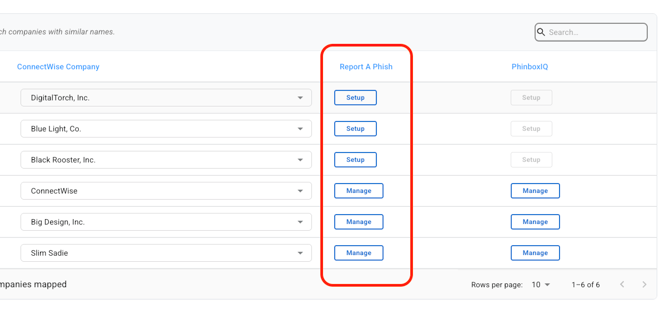
The mapping table's 3rd column, labeled Report-a-Phish, hosts a Setup button per row, giving you quicker access to deploying the Report Phishing button into each companies Outlook instance. The steps to do so are as follows:
-
Click the Setup button of a mapped company
-
Review the permissions and click 'Continue' to be redirected to Microsoft.
Check the 'Don't show again' checkbox to remove this step in the future. - Accept the permissions
- You will be redirected back to Phin and wait for the verification to be completed.
- The modal will populate with a set of instructions for finishing the deployment of the Report Phishing button, which includes:
- Download the manifest file
- Create Custom App & Upload the provided manifest file
- Go to Microsoft Admin Portal
- Go to Settings > Integrated Apps
- Select Upload Custom apps
- Select Office Add-in App type
- Choose Upload manifest file (.xml) from device and select the downloaded manifest file associated with the company.
- Assign users
- Deploy Phin’s 'Report Phishing' button
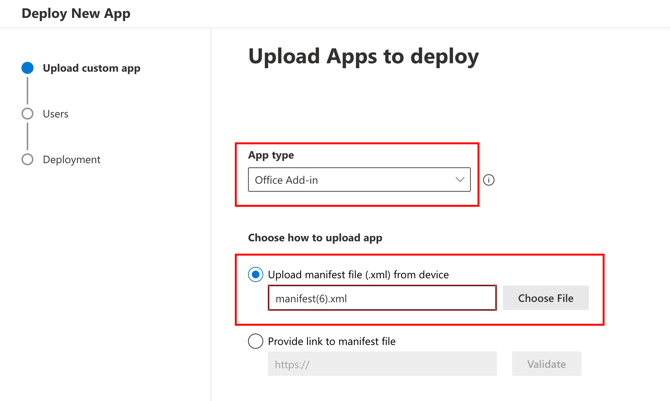
- Once you've completed those steps, come back to the modal and click the button labeled 'Mark as Complete'.
Note: It can take up to 24 hours for an add-in to show up for clients for all users.
Note: This feature can be deployed in Outlook Web App (OWA) and Outlook Desktop Apps, however, it is not currently compatible with the following scenarios
- Outlook Mobile App
- Shared Inboxes
Note: Mac users may need to adjust their toolbar to view the integration.-png-1.png?width=670&height=254&name=image%20(2)-png-1.png)
Note: Outlook on the web has the button in a different location within the email itself.%20(1).png?width=670&height=346&name=Screenshot%202024-06-26%20at%204.37.13%20AM%20(3)%20(1).png)
Important: If someone is added as an admin to Phin, connects this integration and then is removed from Phin, the integration will continue to work as long as the admin has the "Global Administrator" role.
6. Enable Phinbox IQ For Each Mapped Company
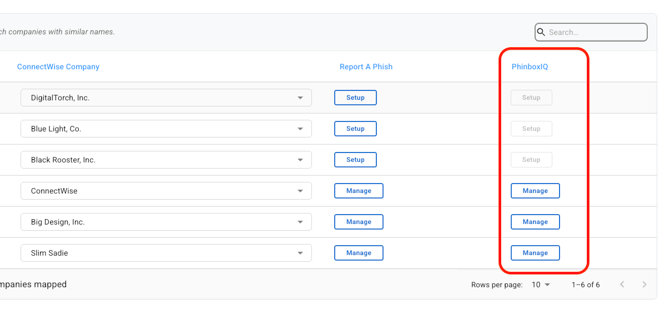
The mapping table's 4th column, labeled Phinbox IQ, hosts a Setup button per row, giving you quicker access to enabling the necessary company level Microsoft permissions for Phinbox IQ to analyze reported emails. The steps to do so are as follows:
-
Click the Setup button of a mapped company
-
Review the permissions and click 'Continue' you'll be redirected to Microsoft.
Check the 'Don't show again' checkbox to remove this step in the future. -
Accept the permissions
-
You will be redirected back to Phin and wait for the verification to be completed.
All required steps to ensure the Phinbox IQ pod is showing up in ConectWise service tickets are complete. Repeats steps 5 and 6 for each mapped company in Phin you'd like to utilize the Phinbox IQ pod for in ConnectWise.